Hello everyone, I need help with a livery issue. I have my BAE146 which I fly many hours, but my favorite liveries are on flightsim.to and are only for 2020. Is there any way to convert these liveries to MFS2024? I have no idea how to do it. Thank you very much for all your replies.

-
Please see the most recent updates in the "Where did the .com name go?" thread. Posts number 16 and 17.
You are using an out of date browser. It may not display this or other websites correctly.
You should upgrade or use an alternative browser.
You should upgrade or use an alternative browser.
LIVERIES 2020-2024
- Thread starter Pere
- Start date

Hollister56
Members +
Hello Pere,
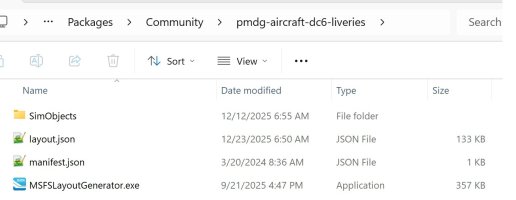
Download and unzip this attachment. Then copy and paste it to your livery folder with the layout.json file. Drag and drop the layout.json file over it and it will create a new layout.json file which will work in FS2024. This is done after you move the livery folder into the FS2024 Community folder.
See if this works for you.
Ed
Download and unzip this attachment. Then copy and paste it to your livery folder with the layout.json file. Drag and drop the layout.json file over it and it will create a new layout.json file which will work in FS2024. This is done after you move the livery folder into the FS2024 Community folder.
See if this works for you.
Ed
Attachments

Fnerg
SOH-CM-2023
Speaking of which, does anyone know of a viewer for KTX2 files? As I'm working away in Substance Painter, I think textures are being flipped vertically on export (although I don't know why) and a ktx2 viewer would keep me straight. Without the ability to compare my file orientation with the developer's, it's another full days work to go through everything, opening the sim 24 times...

Killbilly
SOH-CM-2026
Read this post: https://www.fsdeveloper.com/forum/threads/converting-ktx2-textures.459605/
His Extract_KTX2 batch will turn the files into PNGs for you to view and manipulate.
His Extract_KTX2 batch will turn the files into PNGs for you to view and manipulate.
Fnerg
SOH-CM-2023
Hey that's excellent, thank you. What would we do without those guys over there.Read this post: https://www.fsdeveloper.com/forum/threads/converting-ktx2-textures.459605/
His Extract_KTX2 batch will turn the files into PNGs for you to view and manipulate.
Hello, greetings. First, thank you for responding to my request. I apologize for not replying sooner, but I've been very busy these past few days (I'm not Santa Claus). Your solution didn't work for me, which is a shame. By copying your answer verbatim, I can see the thumbnail when choosing my livery, but when I click on it, everything is pink. Anyway, thank you again. Best regardsHello Pere,
Download and unzip this attachment. Then copy and paste it to your livery folder with the layout.json file. Drag and drop the layout.json file over it and it will create a new layout.json file which will work in FS2024. This is done after you move the livery folder into the FS2024 Community folder.
See if this works for you.
Ed

Benoen
Members +
Hello Pere,
It's a little more complex than a simple copy/paste to convert the liveries to 2024. However, with the JF BAe146 you are able to keep the main add-on directory structure so nothing too awkward there - 2024 can use a very different file/folder structure!
So, as an example (I'm using the 146-300 but it'll depend on the variant) you'd have a structure like this:
To create a layout.json file it's simplest to copy the manifest.json and rename it! We'll come to the proper layout.json file a bit later.
The next file to edit would be the aircraft.cfg. This file is essentially the same as the ones for MSFS 2020 with a couple of small changes. Here's an example:
The next file to change is the texture.cfg. This will be different to the MSFS 2020 version. Use this as an example:
You will then need to convert all the textures from the MSFS 2020 .DDS format to the newer MSFS 2024 .KTX2 format. The nVidia Texture Tools Exporter is possibly the easiest way to do it. Drag the DDS file to it and then Save As using the .KTX2 format.
You can get the exporter here: nVidia Texture Tools Exporter
You will also need to make the matching .json file for each texture file. The filename must match the texture name so you'd have, for example:
The thumbnail(s) from the MSFS 2020 livery can be copied directly into the texture folder.
The final stage is to generate the layout.json file. This is easiest using the MSFSLayoutGenerator program that was posted by Hollister56 at the start of the thread.
This will then create the necessary entries in the layout.json. Once completed (only takes a second) you're ready to try the livery in the sim. If everything went to plan then you're done! If it still doesn't appear, check everything carefully - especially the manifest.json, the aircraft.cfg and the texture.cfg files.
Hope this helps!
It's a little more complex than a simple copy/paste to convert the liveries to 2024. However, with the JF BAe146 you are able to keep the main add-on directory structure so nothing too awkward there - 2024 can use a very different file/folder structure!
So, as an example (I'm using the 146-300 but it'll depend on the variant) you'd have a structure like this:
- justflight-aircraft-146-300-<your-livery-name>
- layout.json
- manifest.json
- SimObjects
- Airplanes
- justflight-aircraft-146-300-<your-livery-name>
- aircraft.cfg
- texture.<your-livery-name>
- texture.cfg
- thumbnail pictures
- texture files in ktx2 format and matching json files
Now, the first file you need to edit would be the manifest.json. This file tells the sim what it is and what any dependencies are. For the BAe146 it would look like this:
JSON:
{
  "dependencies": [],
  "content_type": "LIVERY",
  "title": "146 Professional - 146-300 <your-livery-name>",
  "manufacturer": "BAe",
  "creator": "<creator's name>",
  "package_version": "1.0.0",
  "minimum_game_version": "1.4.14",
  "minimum_compatibility_version": "4.20.0.72",
  "builder": "Microsoft Flight Simulator 2024",
  "release_notes": {
    "neutral": {
      "LastUpdate": "",
      "OlderHistory": ""
    }
  },
  "total_package_size": "00000000000729594313"
}
To create a layout.json file it's simplest to copy the manifest.json and rename it! We'll come to the proper layout.json file a bit later.
The next file to edit would be the aircraft.cfg. This file is essentially the same as the ones for MSFS 2020 with a couple of small changes. Here's an example:
Code:
[VERSION]
major = 1
minor = 0

[VARIATION]
base_container = "..\JF_146_300"

;===================== FLTSIM =====================

[FLTSIM.0]
title = "Just Flight 146-300 <livery-name>" ; Variation name
model = ""
panel = "\..\..\JF_146_100\panel"
sound = "\..\..\JF_146_100\sound"
soundai = "\..\..\JF_146_100\soundai"
texture = "<texture folder>" ; texture folder
kb_checklists = "" ; Procedures/Checklist sibling file name
kb_reference = "" ; Reference information sibling file name
description = "The 146 is a four-engine, high-wing jet aircraft built by Hawker Siddeley of the United Kingdom. The airplane is used for regional passenger service and as a cargo carrier. A total of 387 of the airframe were built between 1978 and 2001, making it one of the great success stories of British commercial aviation.\n\nThe 146 features a swept-back main wing with a span of 86 feet, 5 inches, a T-tail empennage, and tricycle landing gear." ; Variation description.
wip_indicator = 1 ; know if the variation is good to go or still WIP : -1=Disabled, 0=Rough, 1=1st Pass, 2=Finished
ui_manufacturer = "Just Flight" ; e.g. Boeing, Cessna
ui_type = "146-300" ; e.g. 747-400, 172
ui_variation = "146-300 <livery-name>" ; e.g. World Air, IFR Panel
ui_typerole = "Commercial Airliner" ; e.g. Single Engine Prop, Twin Engine Prop, Rotorcraft, etc
ui_createdby = "Just Flight" ; e.g. Asobo Studio, Microsoft, FSAddonCompany, etc
ui_thumbnailfile = "" ; app relative path to ThumbNail image file
ui_certified_ceiling = 31000 ; service ceiling / max certified operating altitude (ft)
ui_max_range = 1040 ; max distance the aircraft can fly between take-off and landing in (NM)
ui_autonomy = 4 ; max duration the aircraft can fly between take-off and landing in (Hrs)
ui_fuel_burn_rate = 3500.0 ; average fuel consumption per hour (lbs/hr) - reminder: fuel density is ~6.7lbs per US gallon
atc_id = "<tail-number>" ; tail number
atc_id_enable = 1 ; enable tail number
atc_airline = "<airline-callsign>" ; airline name
atc_flight_number = "" ; flight number
atc_heavy = 0 ; heavy?
atc_parking_types = "RAMP" ; "ANY" / "RAMP" / "CARGO" / "MIL_CARGO" / "MIL_COMBAT" / "GATE" / "DOCK"
atc_parking_codes = "" ; Comma separated and may be as small as one character each
atc_id_color = "" ; color for the tail number : i.e. "#ffff00ff"
atc_id_font = "" ; font for the tail number
isAirTraffic = 0 ; airtraffic flag for variations
canBeUsedByAITraffic = 0 ;
isUserSelectable = 1 ;
icao_airline = "XXX" ;
The next file to change is the texture.cfg. This will be different to the MSFS 2020 version. Use this as an example:
Code:
[fltsim]
fallback.1=..\..\JF_146_300\texture
fallback.2=..\..\JF_146_100\texture
fallback.3=..\..\JF_146_100\texture.VC
You will then need to convert all the textures from the MSFS 2020 .DDS format to the newer MSFS 2024 .KTX2 format. The nVidia Texture Tools Exporter is possibly the easiest way to do it. Drag the DDS file to it and then Save As using the .KTX2 format.
You can get the exporter here: nVidia Texture Tools Exporter
You will also need to make the matching .json file for each texture file. The filename must match the texture name so you'd have, for example:
BAE146_EXT01_MSFS_300_ALBEDO.PNG.KTX2 (texture file)
BAE146_EXT01_MSFS_300_ALBEDO.PNG.KTX2.json (matching json file)
The thumbnail(s) from the MSFS 2020 livery can be copied directly into the texture folder.
The final stage is to generate the layout.json file. This is easiest using the MSFSLayoutGenerator program that was posted by Hollister56 at the start of the thread.
This will then create the necessary entries in the layout.json. Once completed (only takes a second) you're ready to try the livery in the sim. If everything went to plan then you're done! If it still doesn't appear, check everything carefully - especially the manifest.json, the aircraft.cfg and the texture.cfg files.
Hope this helps!

FlakNine
Members +
Does this really work? My understanding is that the KTX2 files used by MSFS 2024 must have various pieces of Asobo metadata in the header, and thus must be compiled by the 2024 SDK. Unless NVTT is preserving and converting that data from DDS to KTX2 then I can’t see it working. I’m more than happy to be proven wrong on this, but just sharing my own experience.The nVidia Texture Tools Exporter is possibly the easiest way to do it. Drag the DDS file to it and then Save As using the .KTX2 format.
Another option for OP is to use my ImageToMSFSKTX2 script. They still need to convert from DDS to PNG first, and build the folder structure as described above.
FlakNine
Members +
Would you mind sharing an example you created like that please? I'm curious to look at the KTX2 files.I think for a streaming release you need the asobo metadata but for a conventional community folder aircraft normal ktx2 files work.
Certainly I've generated a lot of them in the last few weeks using png's dragged onto the nvidia exporter with no problems.

FlakNine
Members +
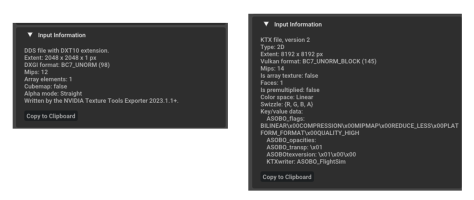
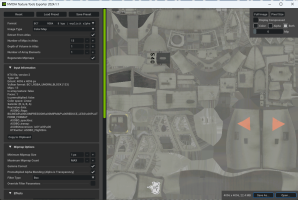
It's in the NVIDIA Texture Tools Exporter application, just expand the "Input Information" section when you have a KTX2 file open.It's possible the output KTX2 textures are less performant in some way...how do you display the metadata?
I could compare the original input files to my modified output ones.
Benoen
Members +
Using the nVidia Texture Tools to do the conversion is the simplest way to do it and yes, it does miss some of the metadata but MSFS doesn't seem to mind too much for most of them. For my 2024 liveries I do use your excellent ImageTOMSFSKTX2 tool to ensure maximum compatibilityDoes this really work? My understanding is that the KTX2 files used by MSFS 2024 must have various pieces of Asobo metadata in the header, and thus must be compiled by the 2024 SDK. Unless NVTT is preserving and converting that data from DDS to KTX2 then I can’t see it working. I’m more than happy to be proven wrong on this, but just sharing my own experience.
Another option for OP is to use my ImageToMSFSKTX2 script. They still need to convert from DDS to PNG first, and build the folder structure as described above.

